A native console for Proxmox VE.
The cluster tree, real VNC consoles for virtual machines, text consoles for containers and node shells, and the Proxmox web interface itself — in one app, with migration, replication, backup and node updates a right-click away. Windows, macOS and Linux; x86_64 and ARM64. It follows your system theme out of the box — or pin it light or dark — and consoles stay dark regardless, as they should.
Version 1.5.4 · clean-room protocol engine · 7,000+ automated tests
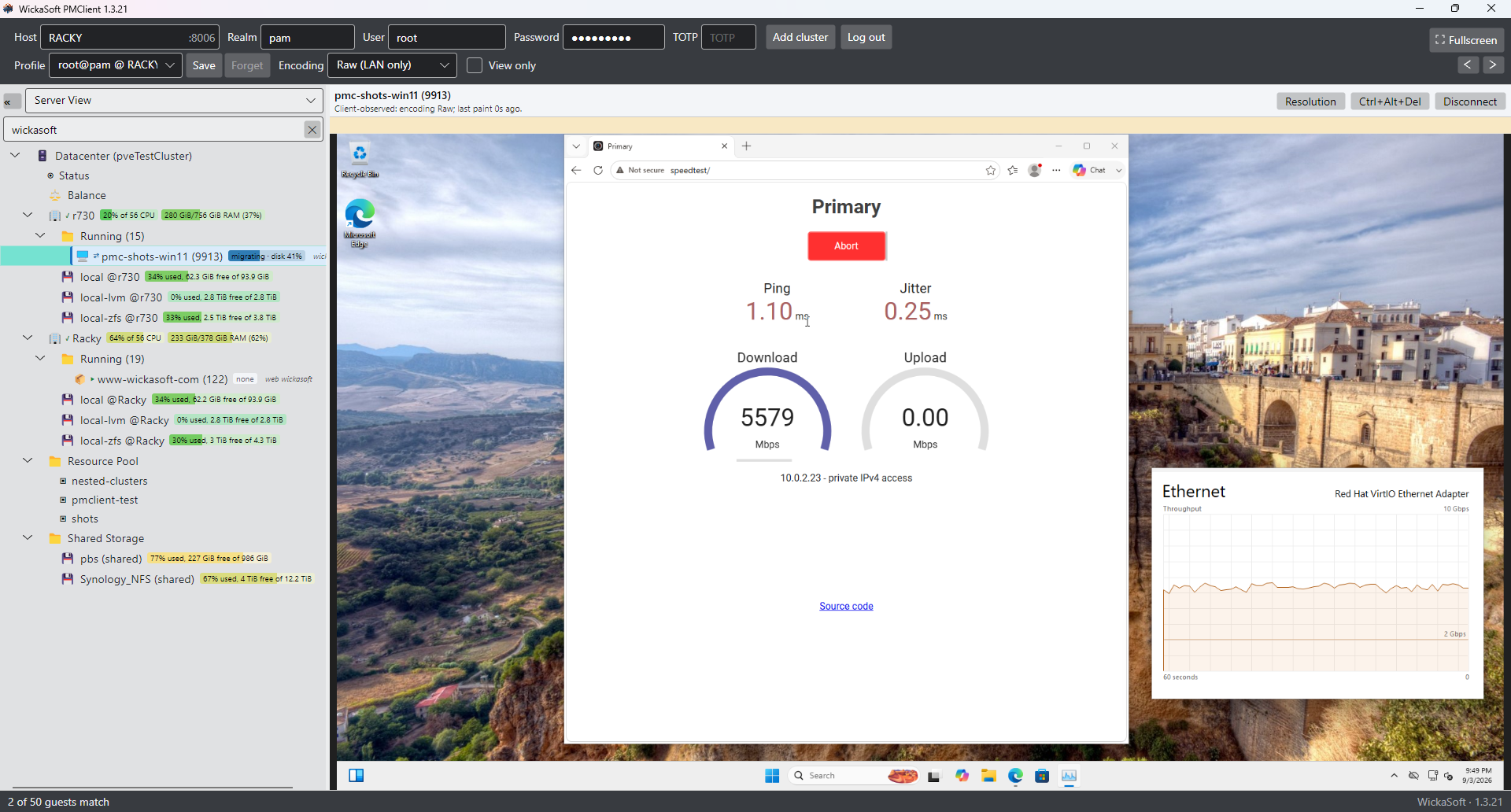
Running a cluster shouldn't mean juggling tabs.
Proxmox's web interface is capable, but a working day with it spreads across browser tabs, and its browser console has no seamless clipboard — so passwords get retyped and text goes through side channels.
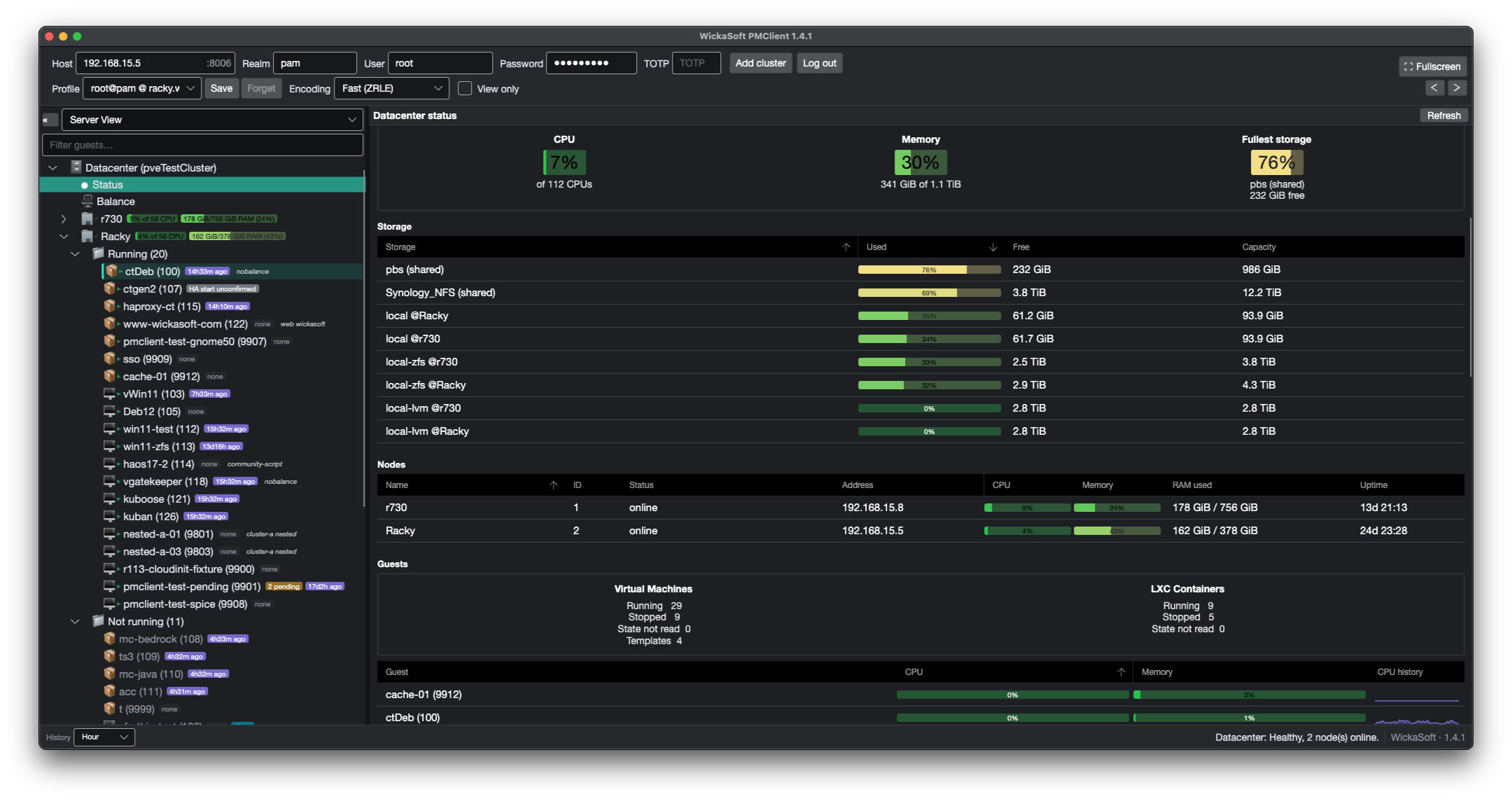
PMClient puts that work in one app. The cluster tree, real consoles and terminals, and the web interface share one window. Migration, replication, backup and node updates are a right-click away, and the Balance page shows where the cluster is uneven.
And the console does what the browser can't: copy and paste in both directions, bound to
your real system clipboard through PMClient's own clean-room RFB 3.8 engine. Turn on
clipboard=vnc for the VM — PVE 8.1+, one click from inside PMClient — and
Ctrl+C / Ctrl+V just works.
Everything between you and the guest, done properly.
Clipboard that just works
The RFB Extended Clipboard, both directions, wired to your OS clipboard — with one-click enablement on the VM and real detection of a dead guest agent instead of silent failure.
A clean-room VNC engine
RFB 3.8 written from the specification: ZRLE, Tight, Hextile and Raw decoders, resize and cursor handling, QEMU extended key events. ZRLE by default; switch to Tight for slow links.
The whole cluster, one window
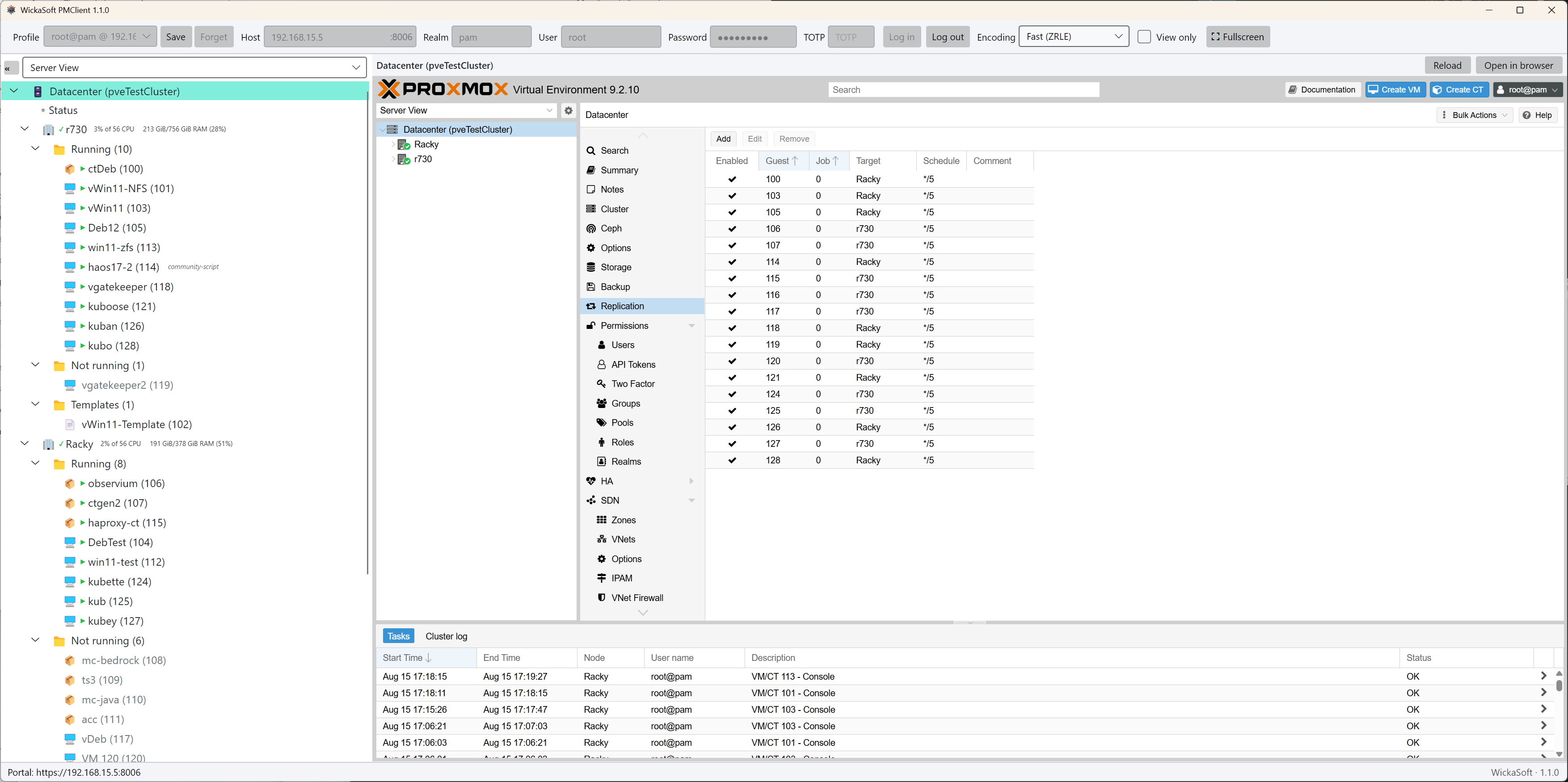
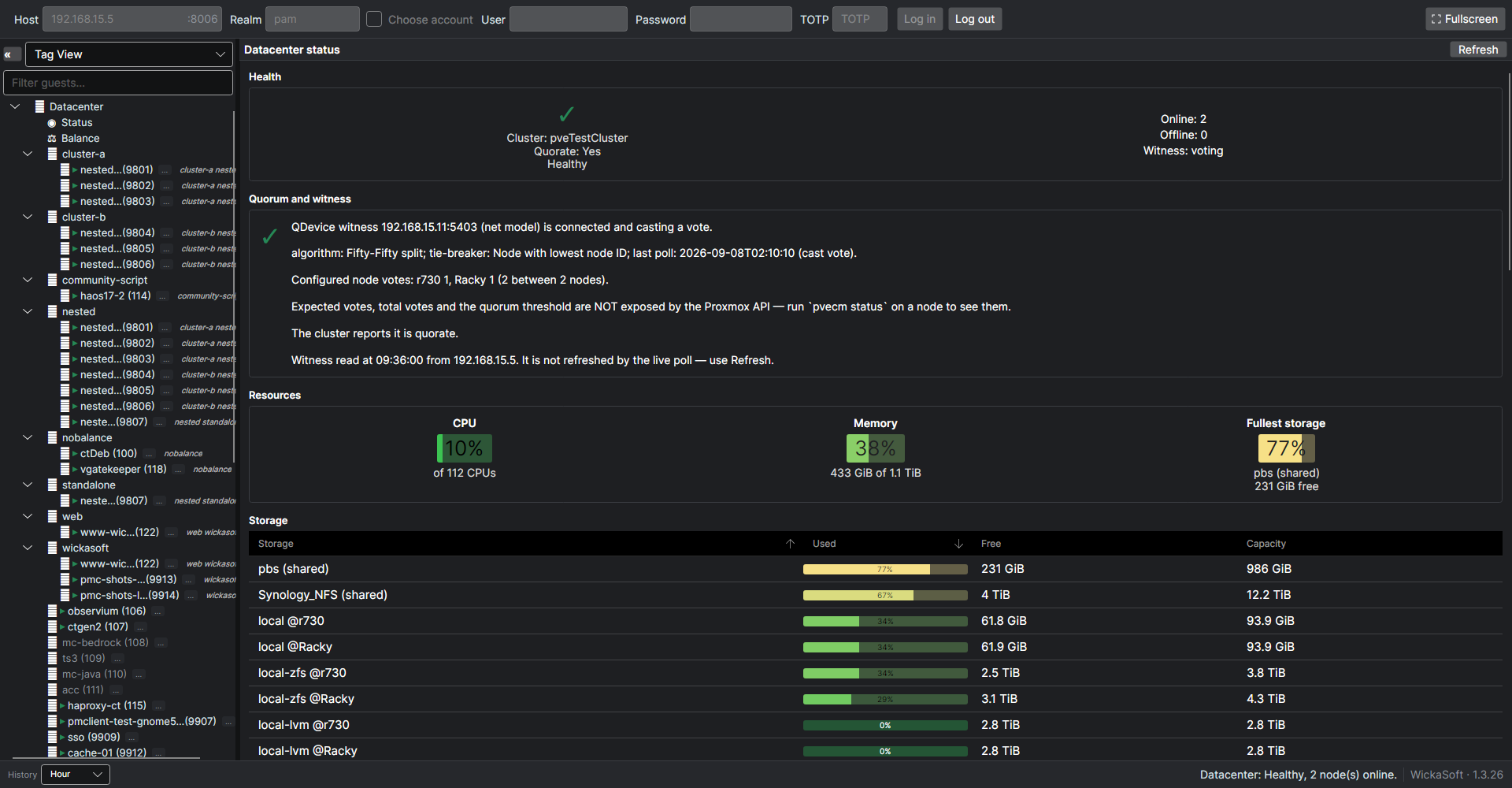
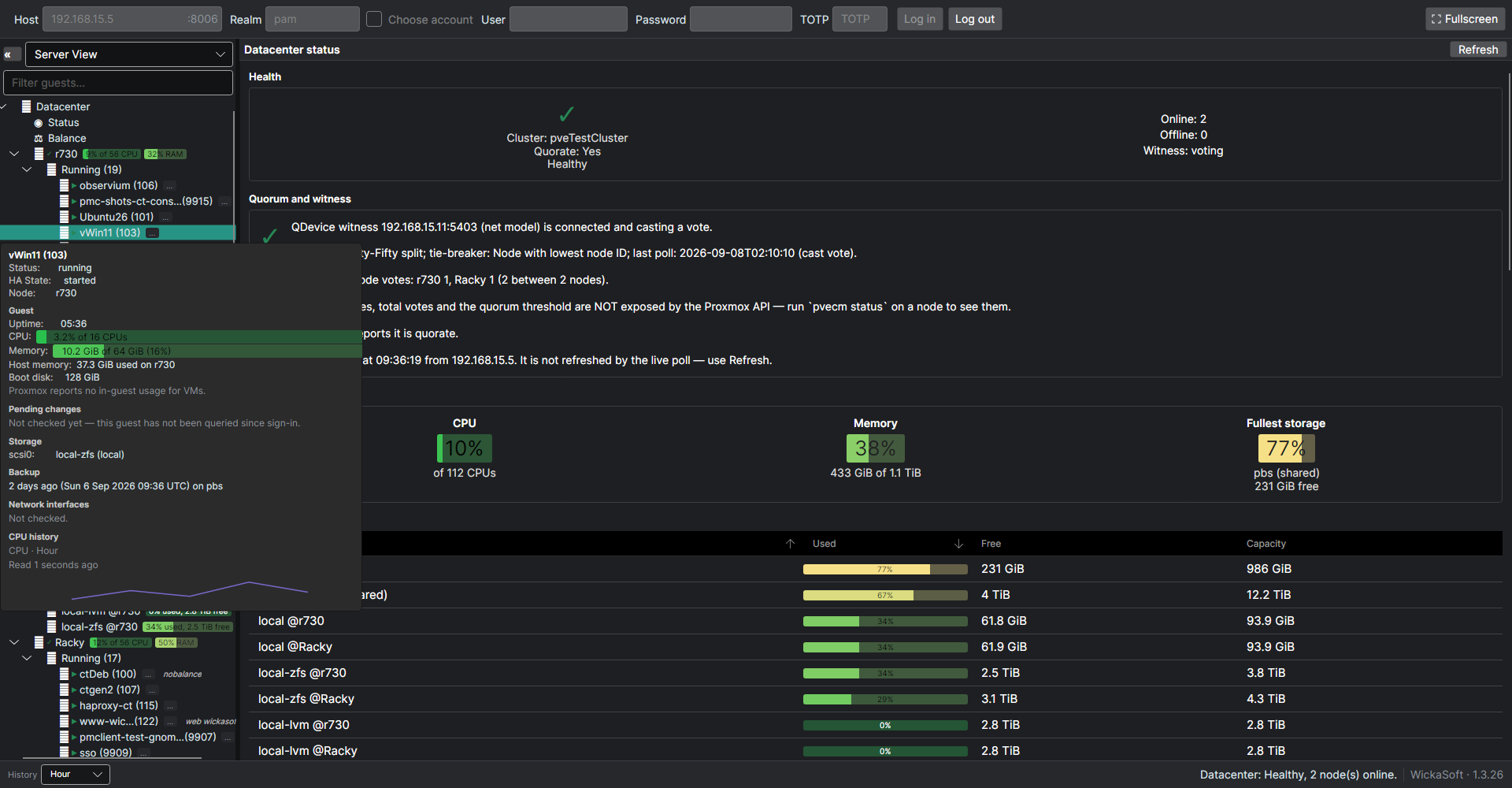
Server, Folder and Pool views of the resource tree, a native datacenter summary, storage contents at a glance — and the Proxmox web UI itself, signed in already when you connected with a password or your identity provider, embedded in the pane on Windows, macOS and Linux. Where a desktop will not allow the embed, it opens in its own window and says so.
Real terminals
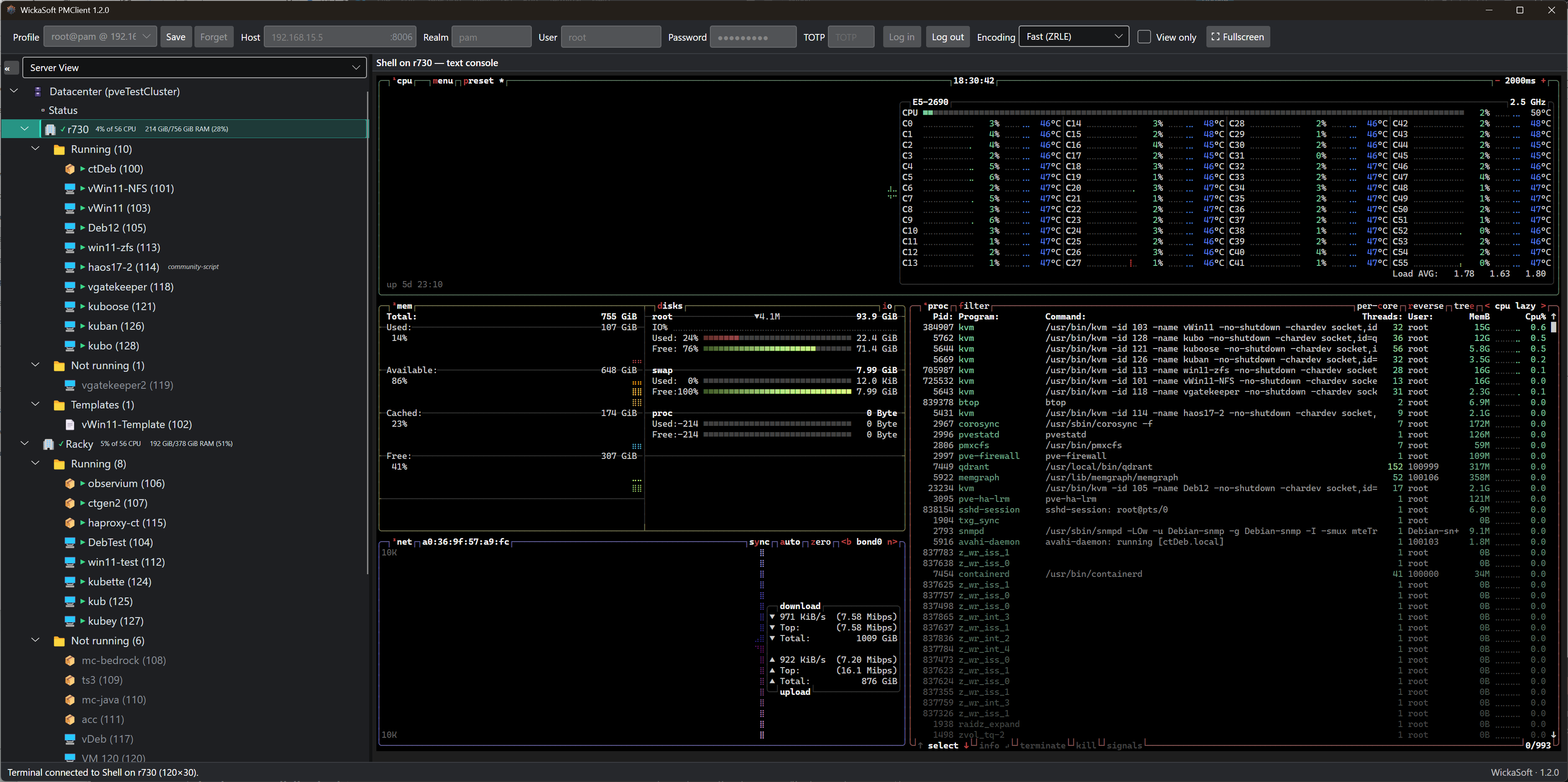
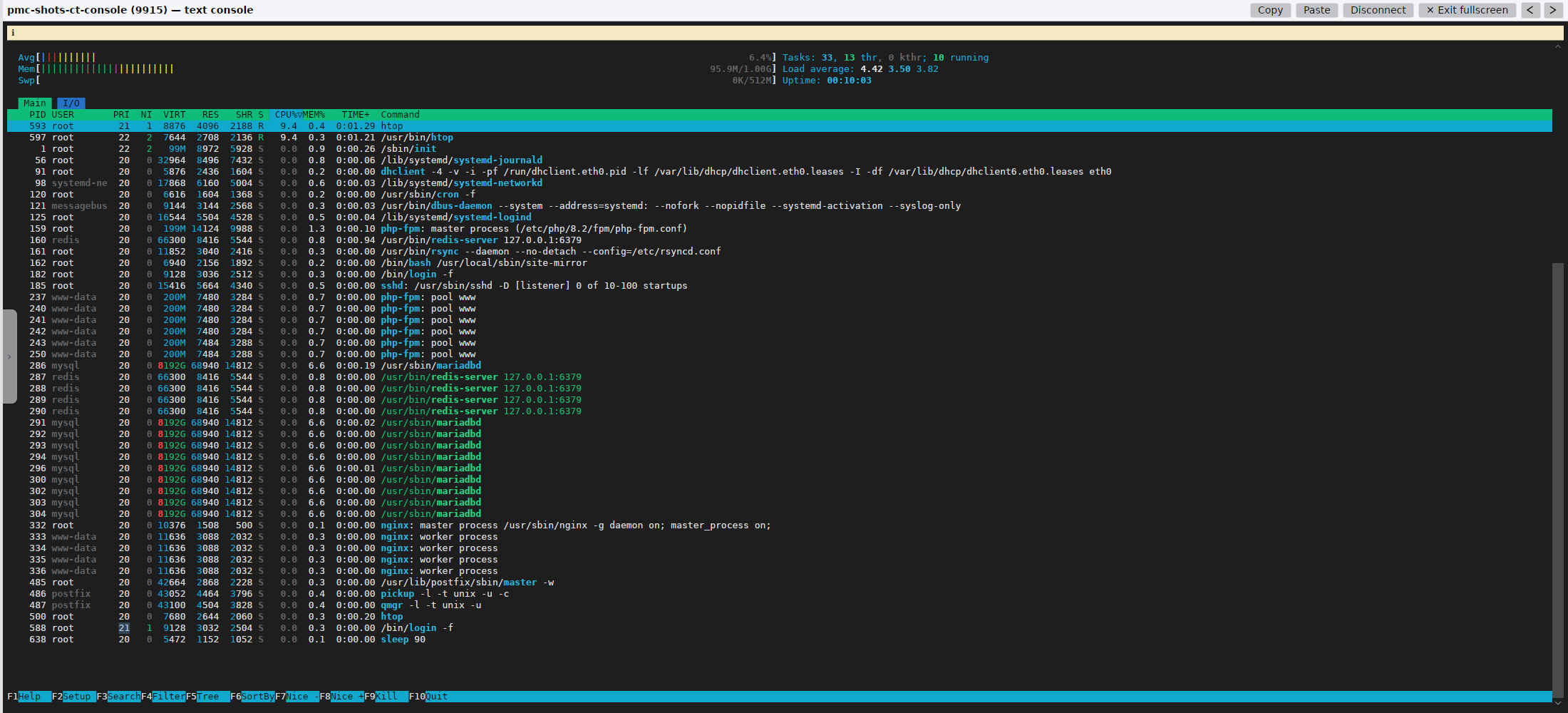
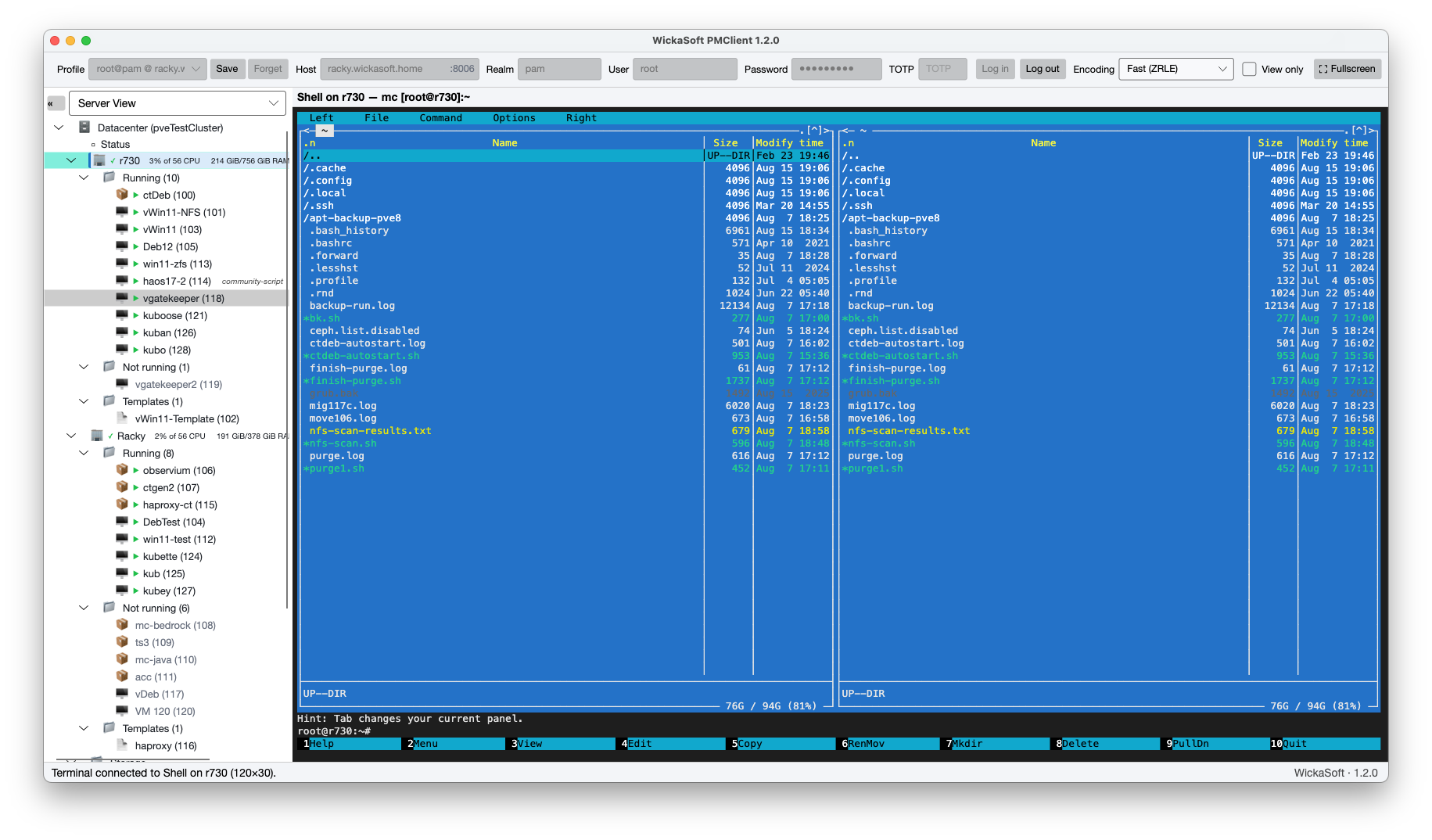
Text consoles for containers, node shells and serial VMs, backed by a genuine VT engine — vim, htop and other full-screen programs behave the way they should. And they survive: navigate away, come back, and the session is still there — scrollback, running command and all — until you disconnect.
Sign in your way
Passwords, TOTP second factors, API tokens — or browser sign-in through any OpenID Connect realm the cluster trusts: Entra, Okta, Keycloak, Authentik. PMClient fronts PVE's own OpenID flow, using the redirect your web UI already has.
Security without escape hatches
SHA-256 certificate pinning: confirm on first contact, loud refusal on mismatch — and deliberately no "ignore" button. Secrets are never written as cleartext — DPAPI, Keychain or Secret Service holds the key, and only an encrypted token is kept beside the profile.
Migration without guesswork
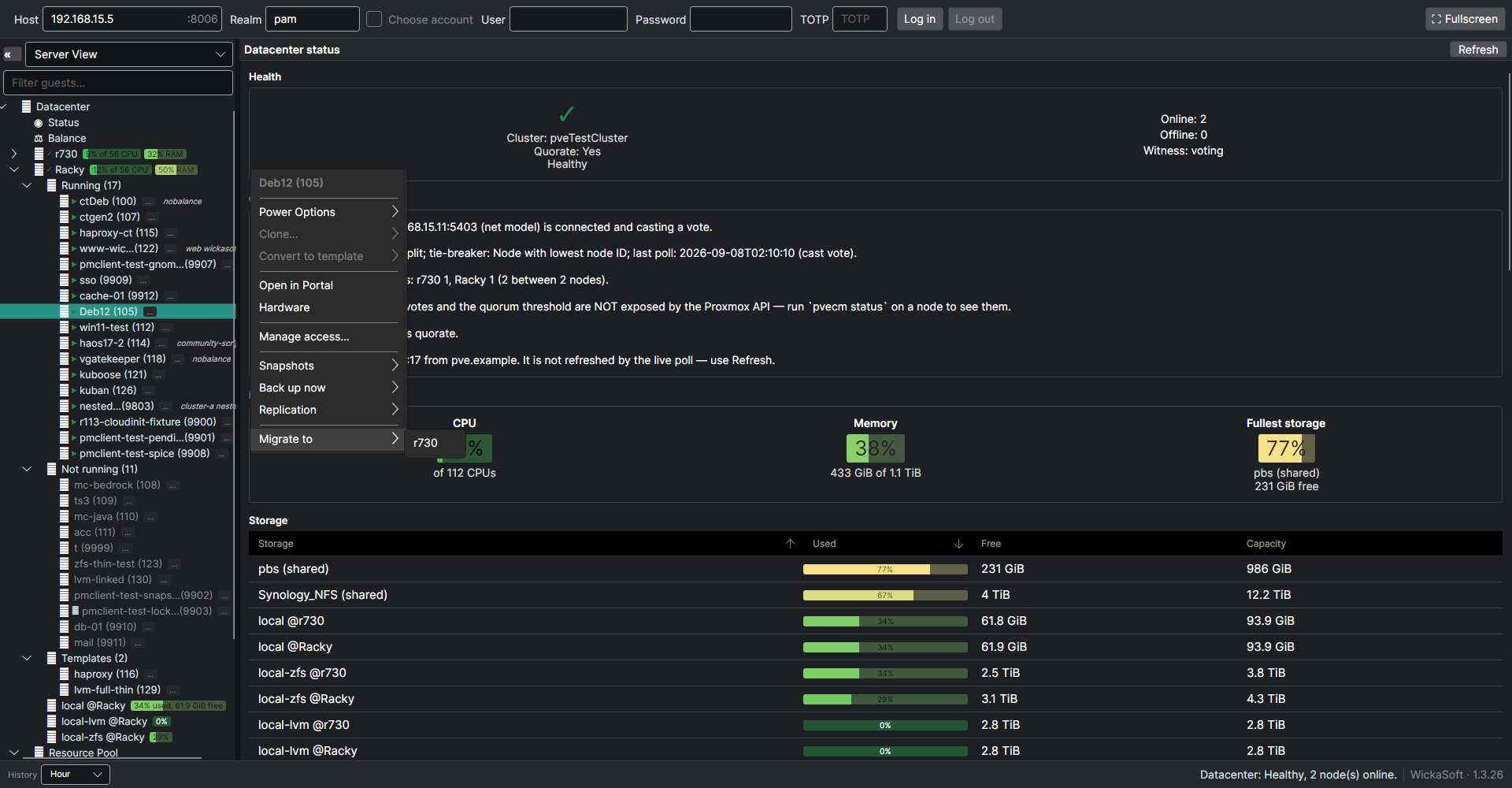
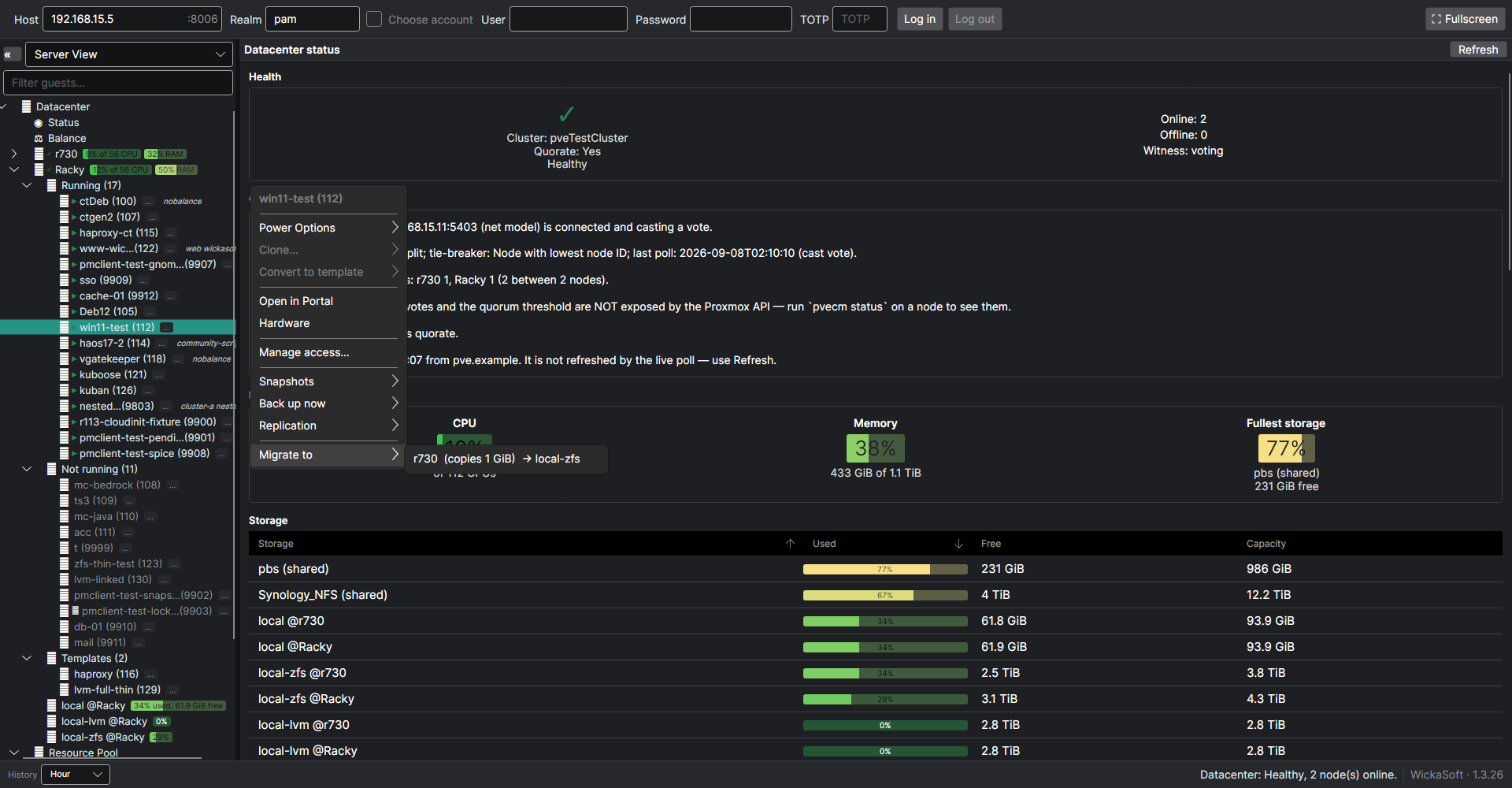
Right-click a guest: every target shows its route and cost up front — replicated, shared storage, or how much local disk gets copied. A node that can't take the guest still appears, grayed out, with the reason beside it. That covers problems Proxmox's own list doesn't flag, like a node left on an older version partway through an upgrade. If an HA rule blocks the move, PMClient names the rule and links to the HA rules page.
Blockers, named up front
If a guest can't move at all — a linked clone, a device pinned to its node — the menu says Blocked and why before anything starts, not minutes into a transfer. And unknowns fail open: a fact PMClient can't check never hides a choice you're entitled to.
Watch it move
Before committing you're told what to expect: a running VM pauses briefly, a container
restarts. Then a live chip on the VM's row names the phase that dominates —
migrating · disk 85%, migrating · RAM 42% — parsed from the
cluster's own task log.
Consoles that follow the guest
A live migration kills the old node's console proxy. PMClient notices, waits until the guest is actually running, re-resolves its new node and reconnects with a fresh ticket — bounded backoff instead of a hung window.
Resolutions, without the console fight
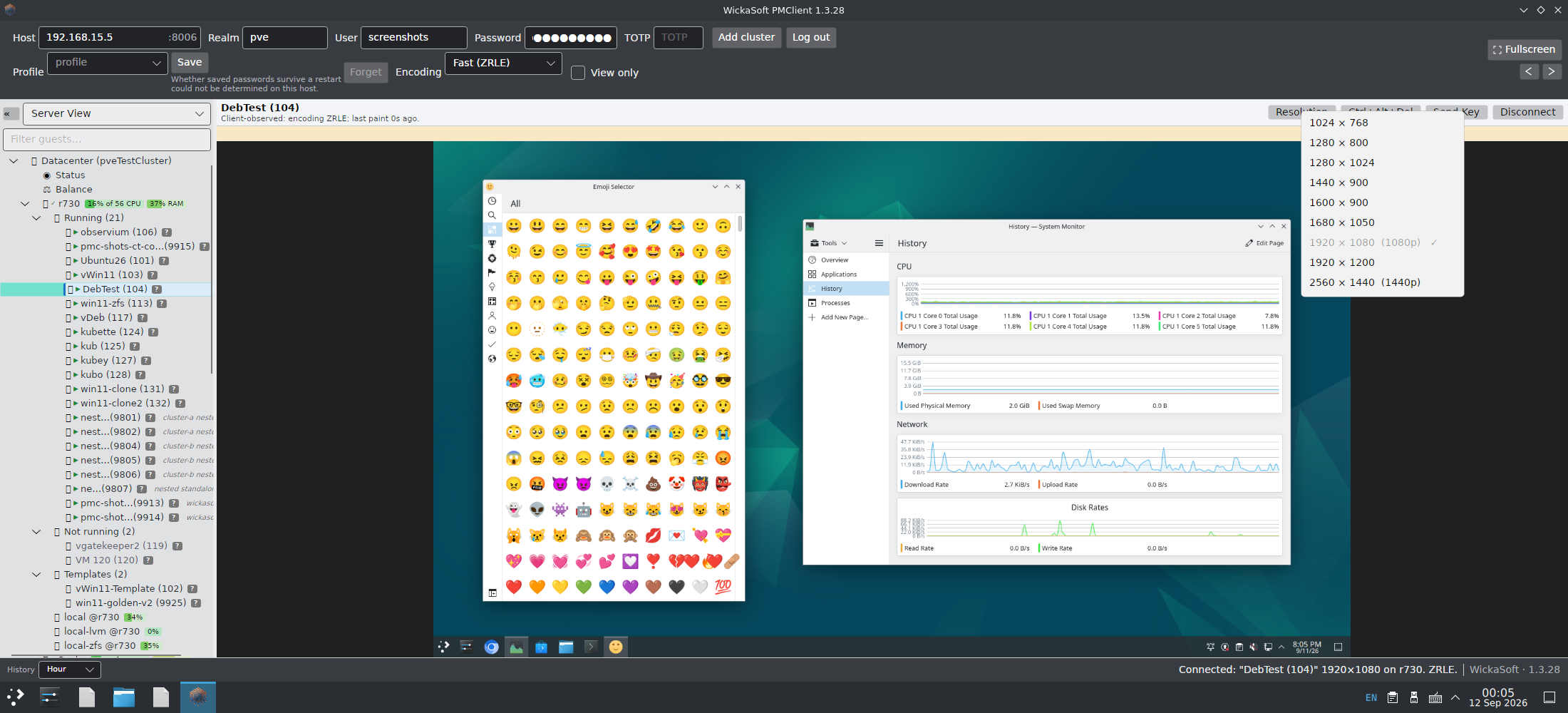
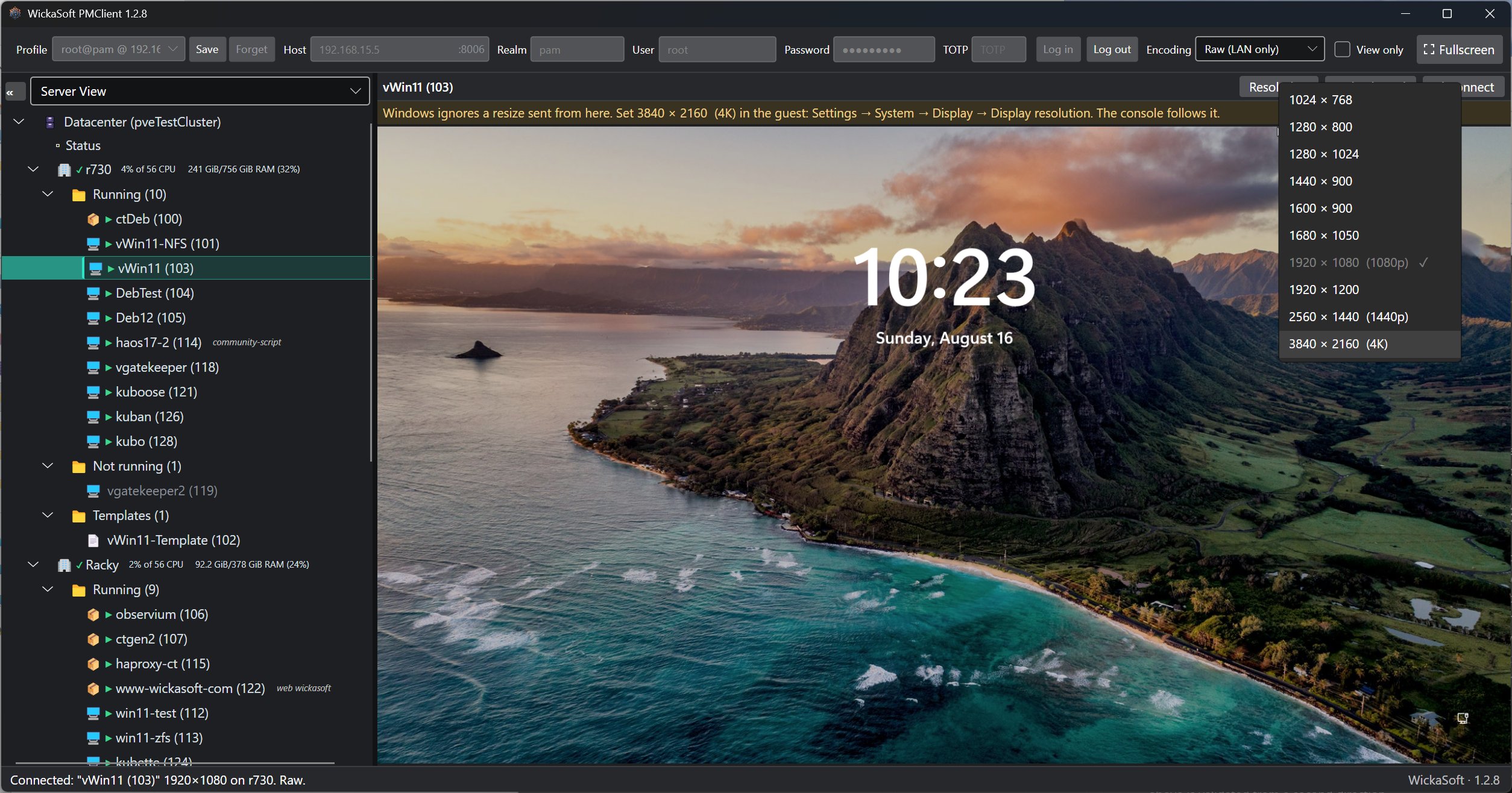
Pick a resolution from the console bar and a Linux guest on a virtio-gpu or qxl display follows it — up to 4K, nothing to install. Windows guests get a one-click switch to a virtio-gpu display that unlocks the full resolution list inside the guest — and the console tracks whatever the guest picks.
Keep nodes current
Right-click a node to refresh its package index or run the full upgrade — in a real console you watch, not a spinner. A status line names what's pending by origin (17 Debian, 4 Proxmox), and when a newer kernel is installed than the one running, PMClient says a reboot is due.
Fluent in PVE permissions
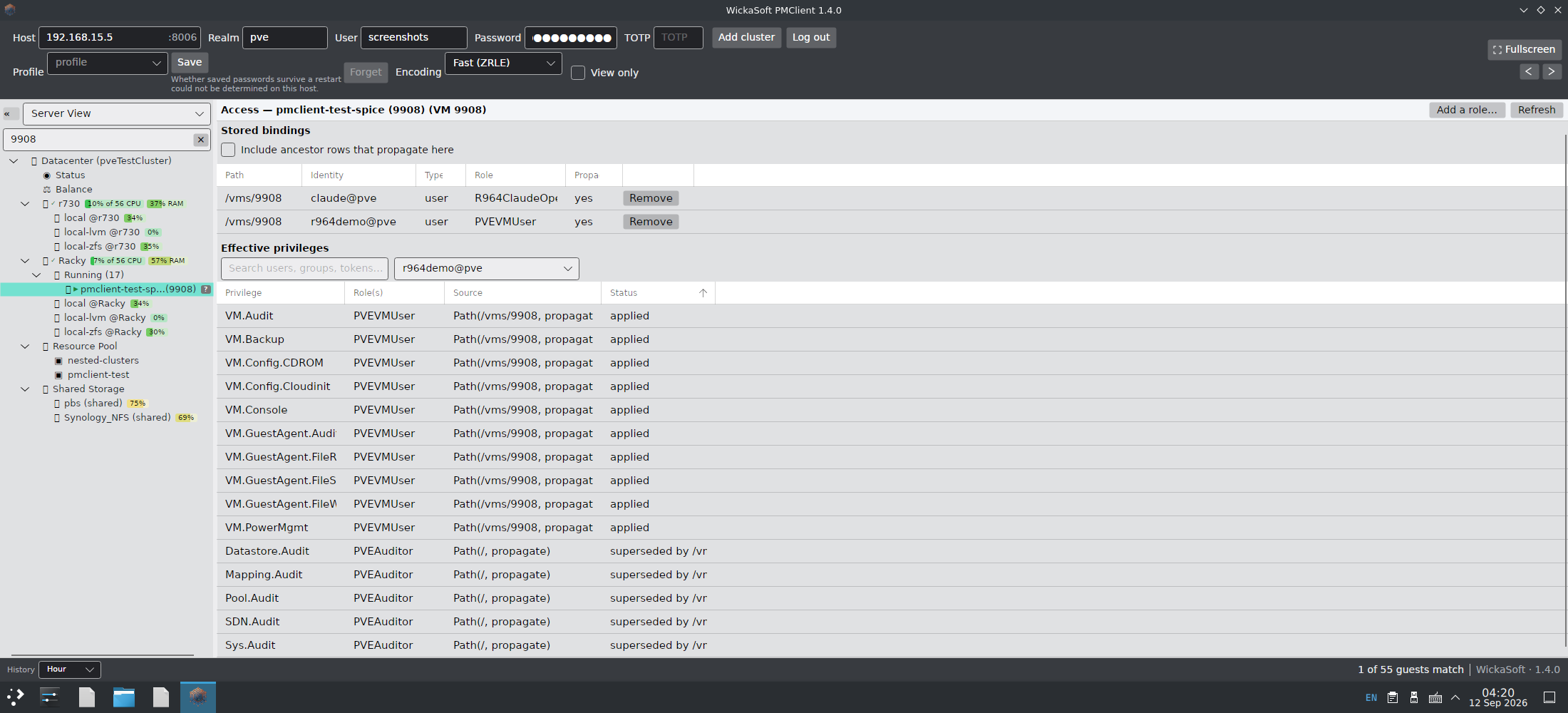
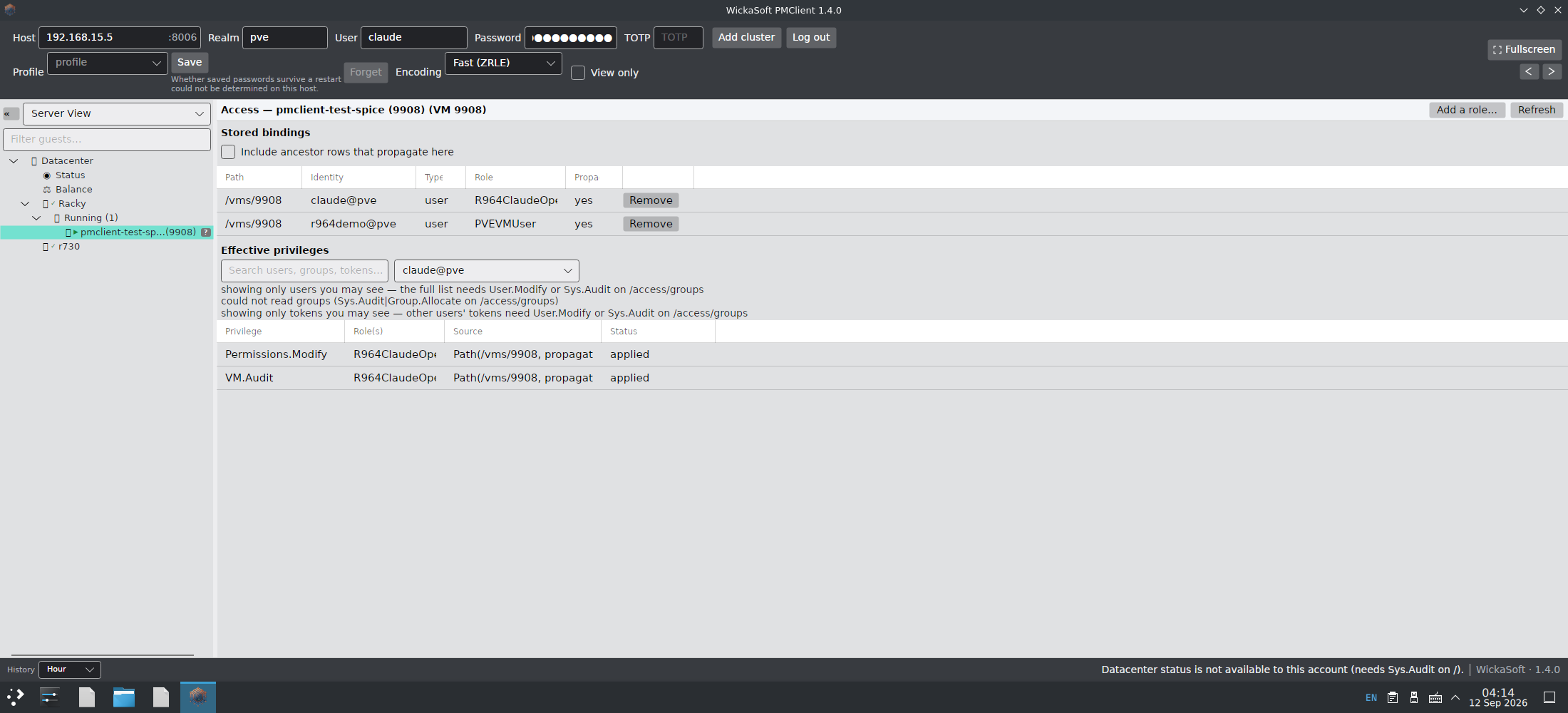
PMClient reads your account's effective privileges — pool inheritance, privilege-separated API tokens and all — and shapes itself to match: power and migration actions you lack stay visible but disabled, naming the privilege you are missing. A refused ACTION is explained in plain language that names the privilege to ask for, where the client can tell which one is missing — not a raw API error.
Native on every desktop
Windows, macOS and Linux — x86_64 and ARM64 natively on each, from Snapdragon X laptops to Apple silicon.
Replication, from the right-click menu
See every replication job on a guest with its live status, run one on demand, and set up, reschedule or delete jobs without leaving the tree. Add a second target from the same menu — it lists only the nodes not yet covered, and says so when every node already is.
Back up now
Right-click a guest, pick a datastore from the ones that can actually take a backup, confirm, and watch it run. If there is nowhere to back up to, the menu says whether no datastore exists or this account simply cannot see one.
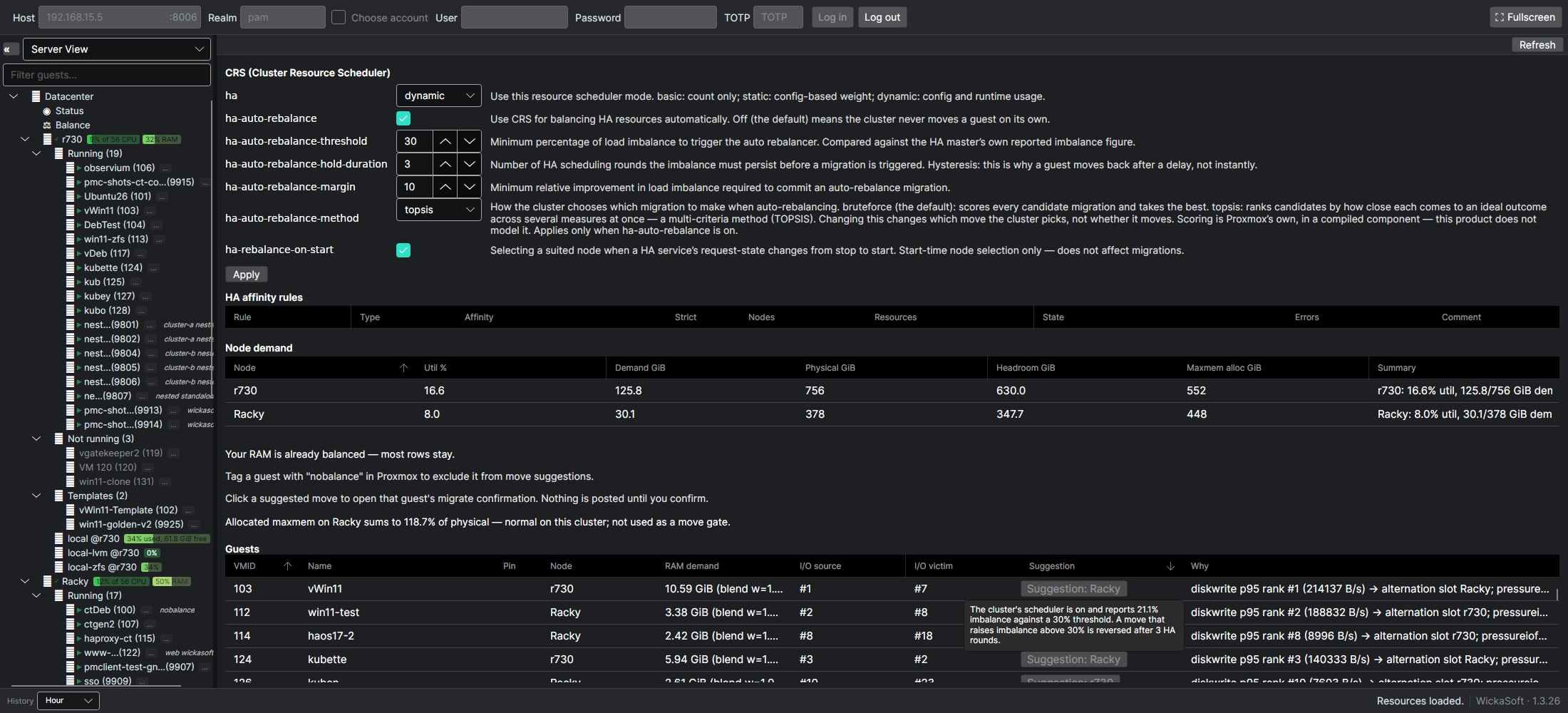
Balance: see where the cluster is uneven
A page under the datacenter showing how guests are spread across nodes, with suggested moves that would even the load and the reasoning behind each one. Suggestions only — nothing moves until you decide it should. It also shows the cluster's own scheduler settings, each with a line explaining what it does, and changes them where your account may.
A closer look.
Version 1.5.4
Pick the build that matches your OS and CPU. Public downloads are being staged — the links below lead to a holding page until they open.
| OS / CPU | File | Notes |
|---|---|---|
| Windows · x86_64 | WickaSoft-PMClient-1.5.4-win-x64.exe |
The normal choice on desktops and most laptops. |
| Windows · ARM64 | WickaSoft-PMClient-1.5.4-win-arm64.exe |
Snapdragon X, Surface Pro X/11. The x86_64 build runs under emulation, but native is much faster. |
| Linux · x86_64 | wickasoft-pmclient_1.5.4_amd64.deb |
Debian / Ubuntu package: sudo apt install ./wickasoft-pmclient_1.5.4_amd64.deb |
| Linux · ARM64 | wickasoft-pmclient_1.5.4_arm64.deb |
As above. |
| Linux · other distros | …-linux-x64.tar.gz ·
…-linux-arm64.tar.gz |
Untar and run — the tarball preserves the executable bit. |
| macOS · Apple silicon | WickaSoft-PMClient-1.5.4-osx-arm64.zip |
A regular .app bundle — unzip and drag to Applications. |
| macOS · Intel | WickaSoft-PMClient-1.5.4-osx-x64.zip |
As above. |
Not sure which CPU you have? Windows: Settings → System → About →
System type. Linux and macOS: uname -m.
Setup steps, shortcuts, permissions and troubleshooting live in the
documentation.
clipboard=vnc on the VM's display — PMClient can flip that for you — plus
the clipboard agent in the guest: part of the virtio-win guest tools on Windows, the
spice-vdagent package alongside the usual qemu-guest-agent
on Linux.